
How Do I Show PowerPoint Slides From OBS?
You can display PowerPoint slides — including slide transitions and animations — during a live webinar by capturing the PowerPoint window inside OBS. This article walks you through the full setup.
Prerequisite: This article assumes you already know how to run a live webinar with OBS. If you haven't set that up yet, start with one of these first:
Step 1: Set PowerPoint to Reading View
- Open your PowerPoint presentation.
- From the top ribbon, click View.
- Select Reading View.
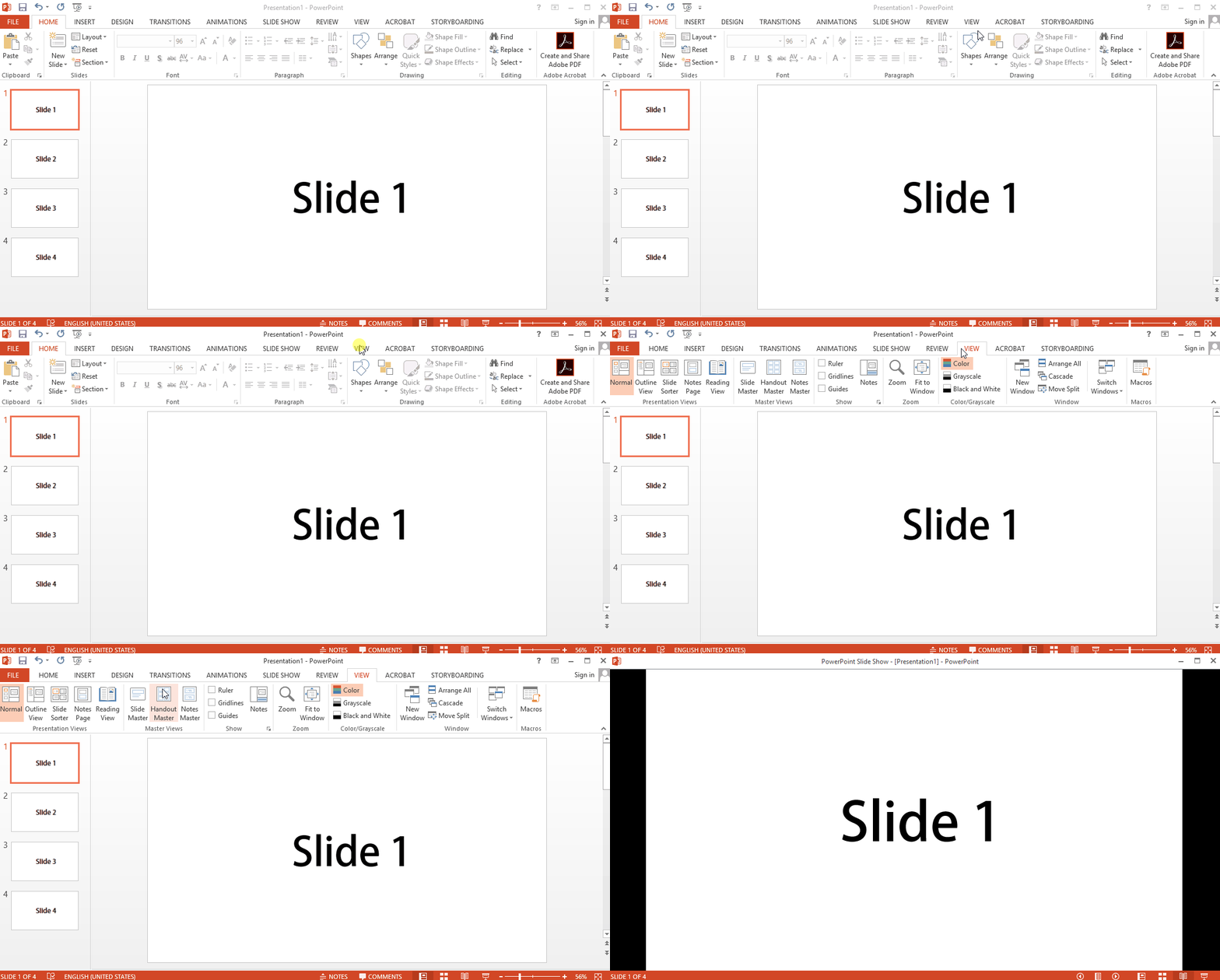
Note: Reading View has been deprecated in newer versions of PowerPoint. If you don't see this option, simply resize the PowerPoint window in OBS afterward so it shows only the slide area (see Step 2).
Important: Keep the PowerPoint app open and visible — do not minimize it. OBS can only capture windows that are open on screen.
Step 2: Capture the PowerPoint Window in OBS
- Open OBS and go to the Sources panel.
- Click the + icon and choose Window Capture.
- Give the source a name (e.g., "PowerPoint Slides") and click OK.
- In the popup that appears, open the Window dropdown and select powerpoint.exe.
- Click OK. Your slide should now appear in the OBS preview area.
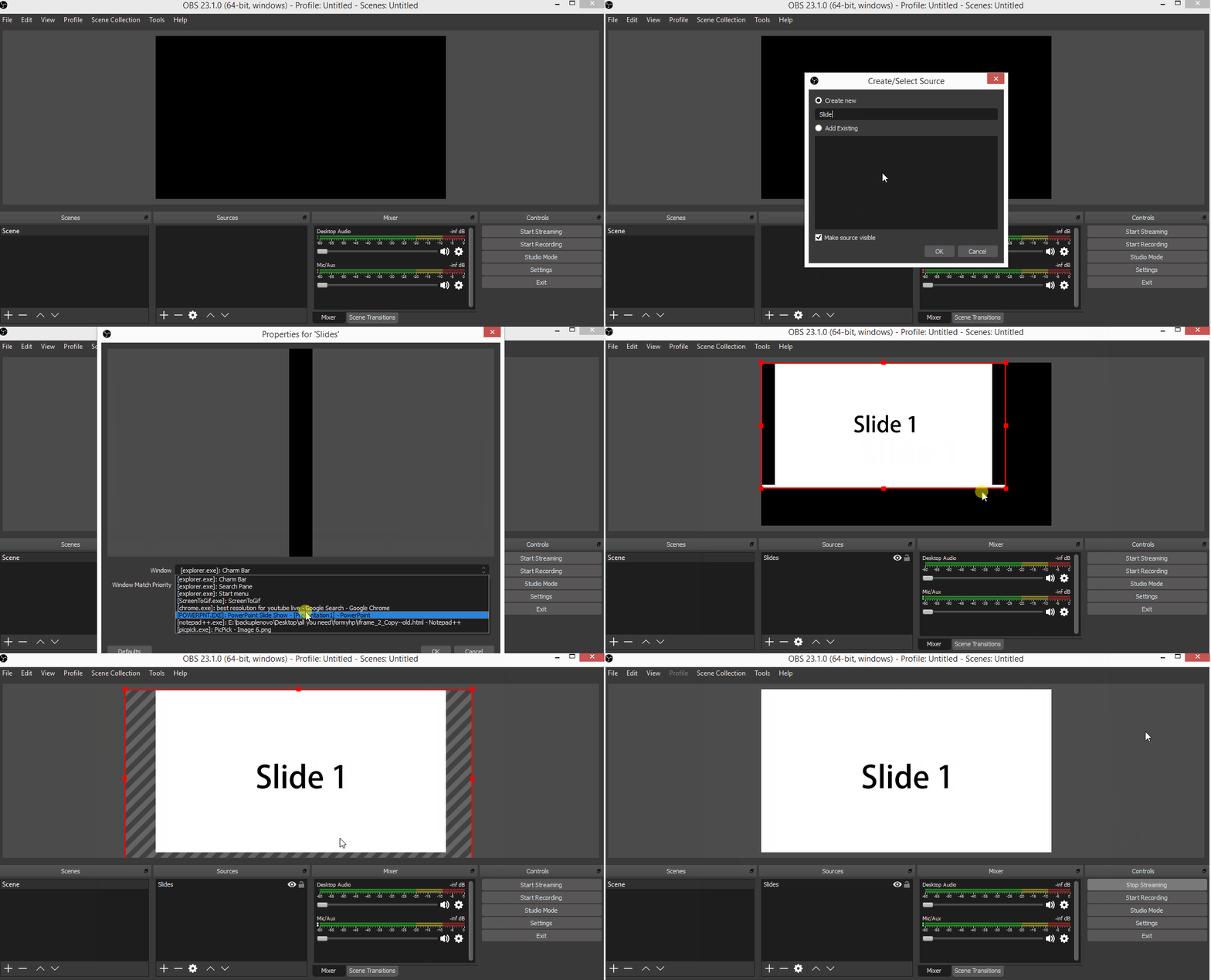
If you're using a newer version of PowerPoint without Reading View, resize the captured window/source in OBS so only the slide content is visible — cropping out any toolbars or menus.
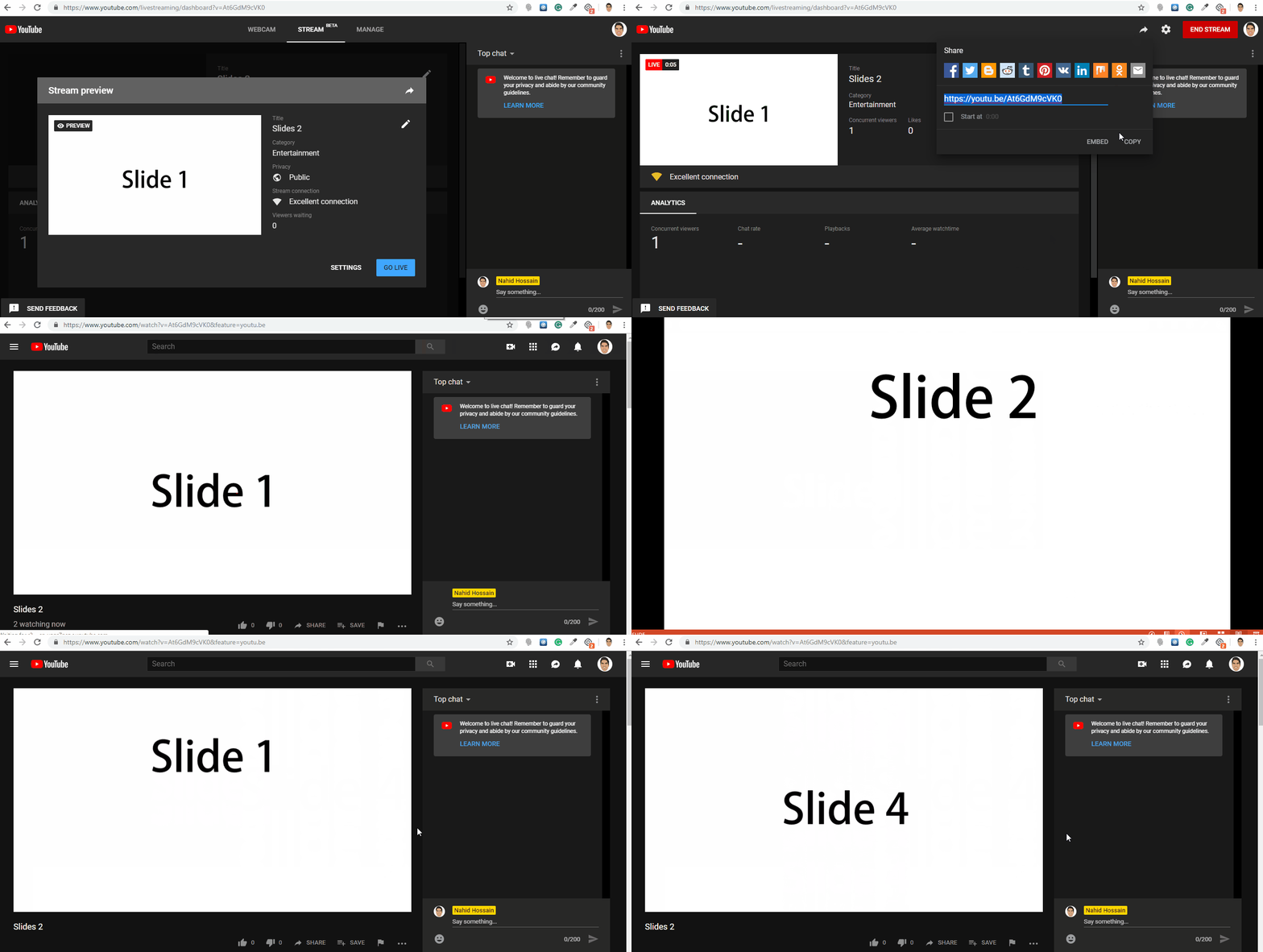
Your PowerPoint slides — including transitions and animations — will now display live through OBS. Here's an example of how this setup looks running on YouTube Live, including transition animations carrying over correctly:
Common Questions
Will my slide transitions and animations still work?
Yes. Because OBS is capturing the live PowerPoint window rather than static images, transitions and animations play normally during your webinar.
What if I don't have a Reading View option in PowerPoint?
Newer PowerPoint versions removed Reading View. Use the normal slideshow view instead, and resize the Window Capture source in OBS so it shows only the slide area.
Can I switch between PowerPoint and my webcam during the presentation?
Yes. Since PowerPoint is just another Source in OBS, you can add a Scene with both your Window Capture and a webcam source, and switch between Scenes as needed.
Does this work on Mac?
The Window Capture approach works the same way in OBS on macOS — select PowerPoint from the window list instead of powerpoint.exe.