
Can I Change My Webinar Video Without Starting a New Event?
Switching video at an existing webinar event link is available to do easily, or with our support's assistance either way.
Webinar Event video switching is done by uploading the new video,
to your Library FIRST! > HERE
- Important to remember this step, if attempting to edit & replace within the event itself will result in event downtime. It shown how to if you're not familiar > HERE
It can take some time to upload, you are informed at your account's email address once the new video is complete & ready to use at events.
Once that step is complete take Note of the new video's Unique Name & its runtime (video length) for future use. (as shown below)

Now you can proceed into My Webinars & browse down the page to webinar event you want to Edit
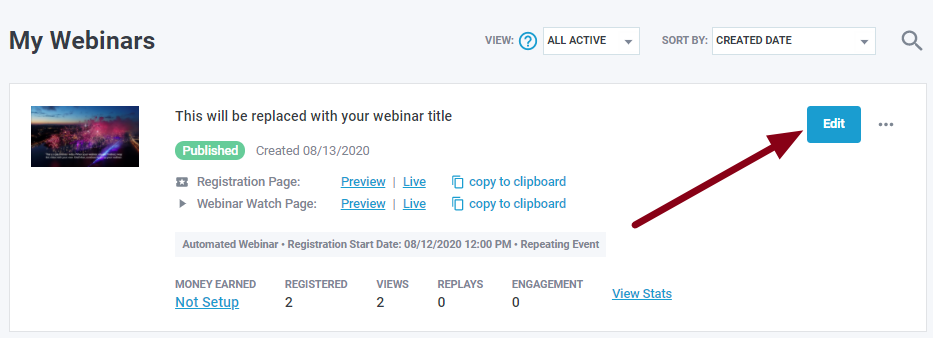
At the following page, you will find place when scrolling down to > Switch Video < (as shown below)

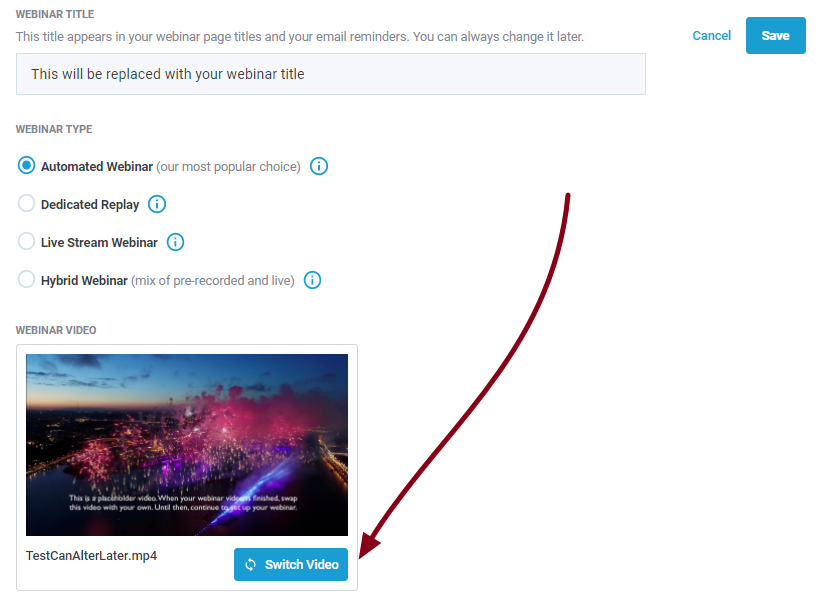
Browse to & Select video that was previously completely uploaded to your Library (By Name)
then Save!

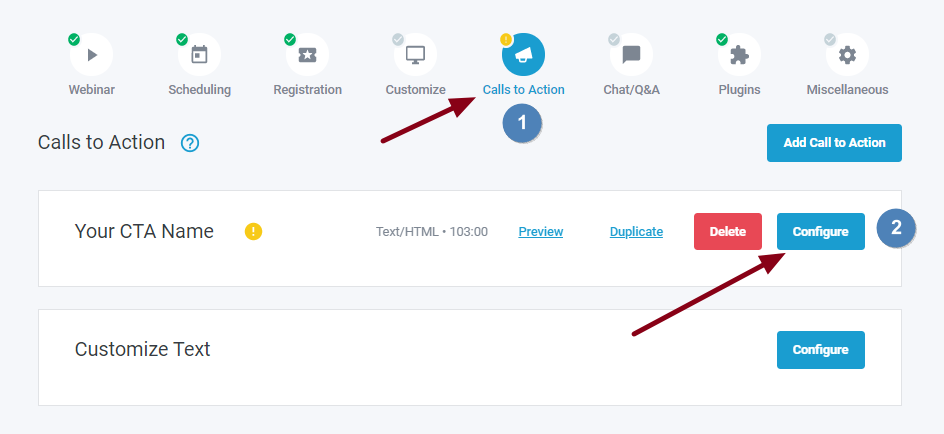
Important Note! - If you are using a Call to Action, adjust your CTA's timing so it's congruent with the new video's length (As Shown Below)
1. Go to Calls to Action, click on Configure beside the CTA name (notice how our system is showing the yellow warning icon, this tells me my CTA timing is not aligned anymore, now that I have changed the video)
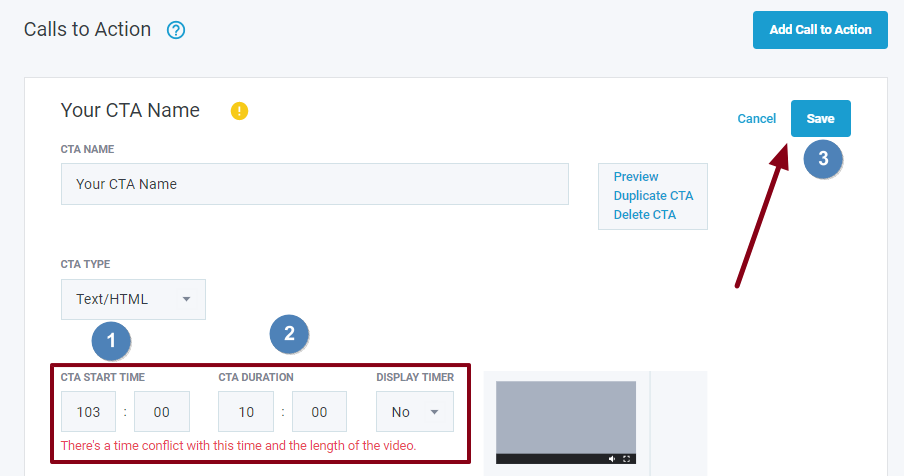
Edit the Call to Action's (start time & duration) (as shown below) to suite the new runtime
- you get those times from video timeline when running at your device
- you get those times from video timeline when running at your device
That's all, if you have any questions, do not hesitate to let us know.
Related Articles:
How to convert more webinar leads and sales with the power of the StealthSeminar statistics