
Webinar Split Testing
Our webinar split test is meant for items at the event's watchpage, it setup from a single registration page, to an original webinar event. We randomize and balance the traffic across the two webinar's watchpage in the split test. we keep registrants attached to the webinar they registered for as best as possible.
Important: We split test by webinar, not dates. Therefore, for each split test change you make, be sure generate a fresh webinar(s) to split test so you have accurate results.
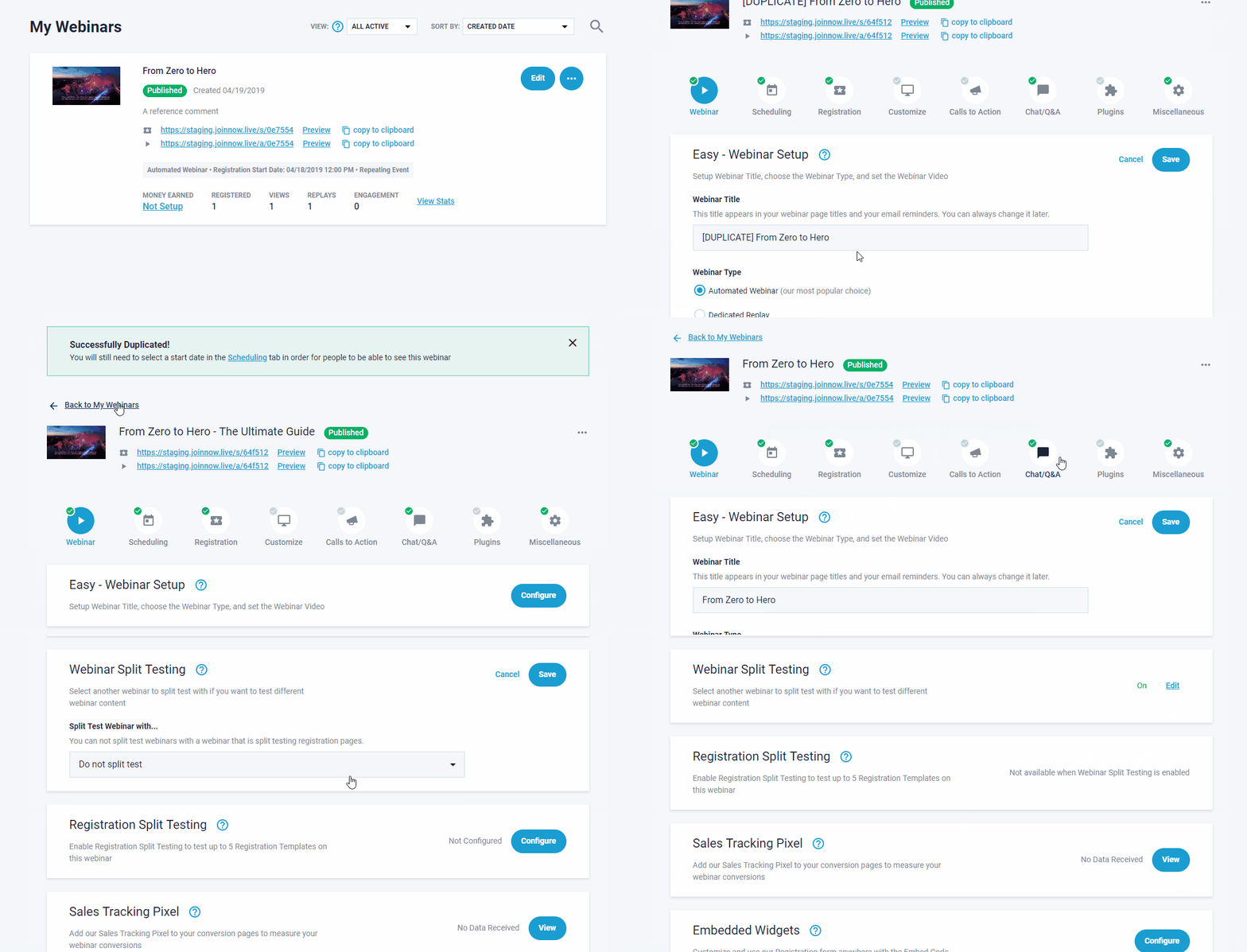
You will need at least two separate events to run split test, you can access the Duplicate function at My Webinars easily to set that up.
As the events are completely separate, you can track everything separately for them. The possibilities are endless, example(s)
- Split test different webinar videos
- Keep same webinar video for both event, but change the call to actions
- Split test between different redirects at the end of the webinar
...and so on.
To set up the webinar split test, the easiest way is to just duplicate your event and make the changes you want. Once complete enable Webinar Split test in Miscellaneous section (at the original webinar event) here you will find place to specify the other webinar event.


That's all that is required to setup a Webinar Split test, once complete let your event run some good traffic for a good esitmated amount of time. You will find results in Stats. (at the original webinar event) as shown below, through tabs there to select between the differenet events.

Key stats. to look for with webinar split testing are Webinar Video Retention (Drop offs) & Call to Action Engagement.
Check our Download .pdf for definitions of Statistic items > HERE
Related Articles: