
How to enable closed captioning for your webinar
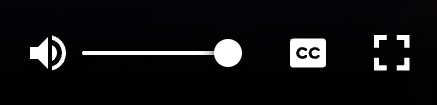
Our Closed Captioning feature allows you to upload a .vtt file, During the webinar attendees will be able see the closed captioning by simply toggling this CC button. in lower right corner of watchpage.
(as shown below)
Note: this feature will not be available for live or hybrid webinars
To upload a web vtt file, you can go to the Miscellaneous section in your webinar editor, scroll down until you find Closed Captioning, Click on the Configure button, and then select the web vtt file from your computer, and then hit save.

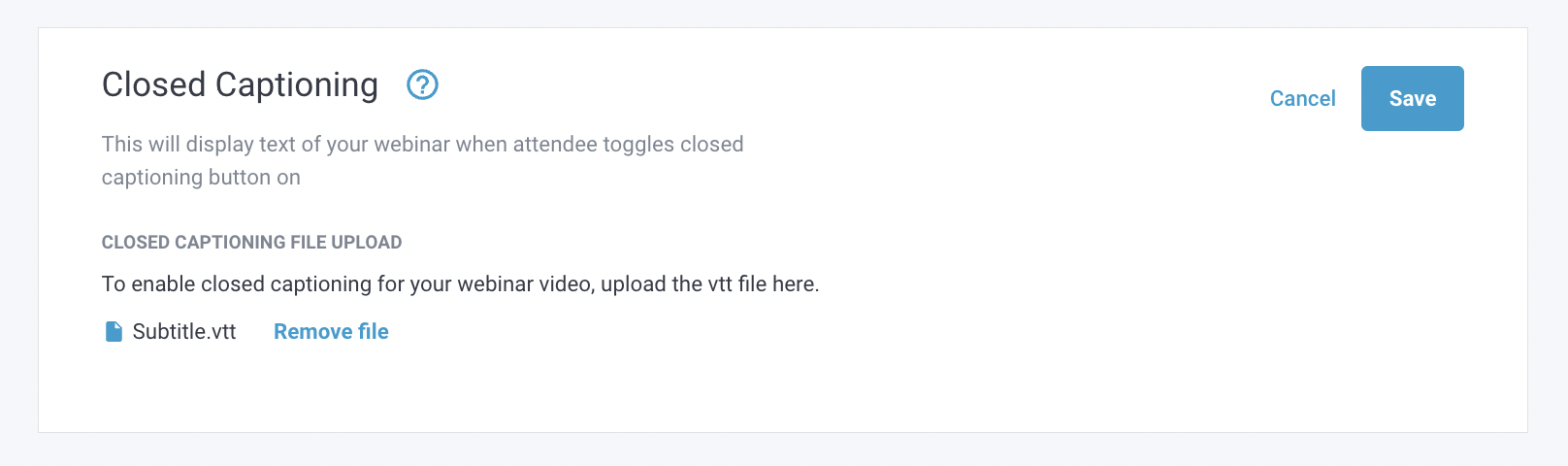
Once that is complete, you can preview your webinar's watchpage to verify CC for use.
How to Make a web vtt File:
Please note, StealthSeminar support does not offer a transcription service.
Some resources are listed below, how to make/create a web vtt file from scratch.
You can also use paid services like Fiverr, Rev and pay someone to transcribe it for you.
How to convert a (.srt) file to web (.vtt) file:
Related Articles: