
How to Add UTM Parameters to Your Registration Page URL links
UTM code tracking is available to setup with our registration pages directly by appending them.
Follow directions to easily generate UTM for append addition> HERE
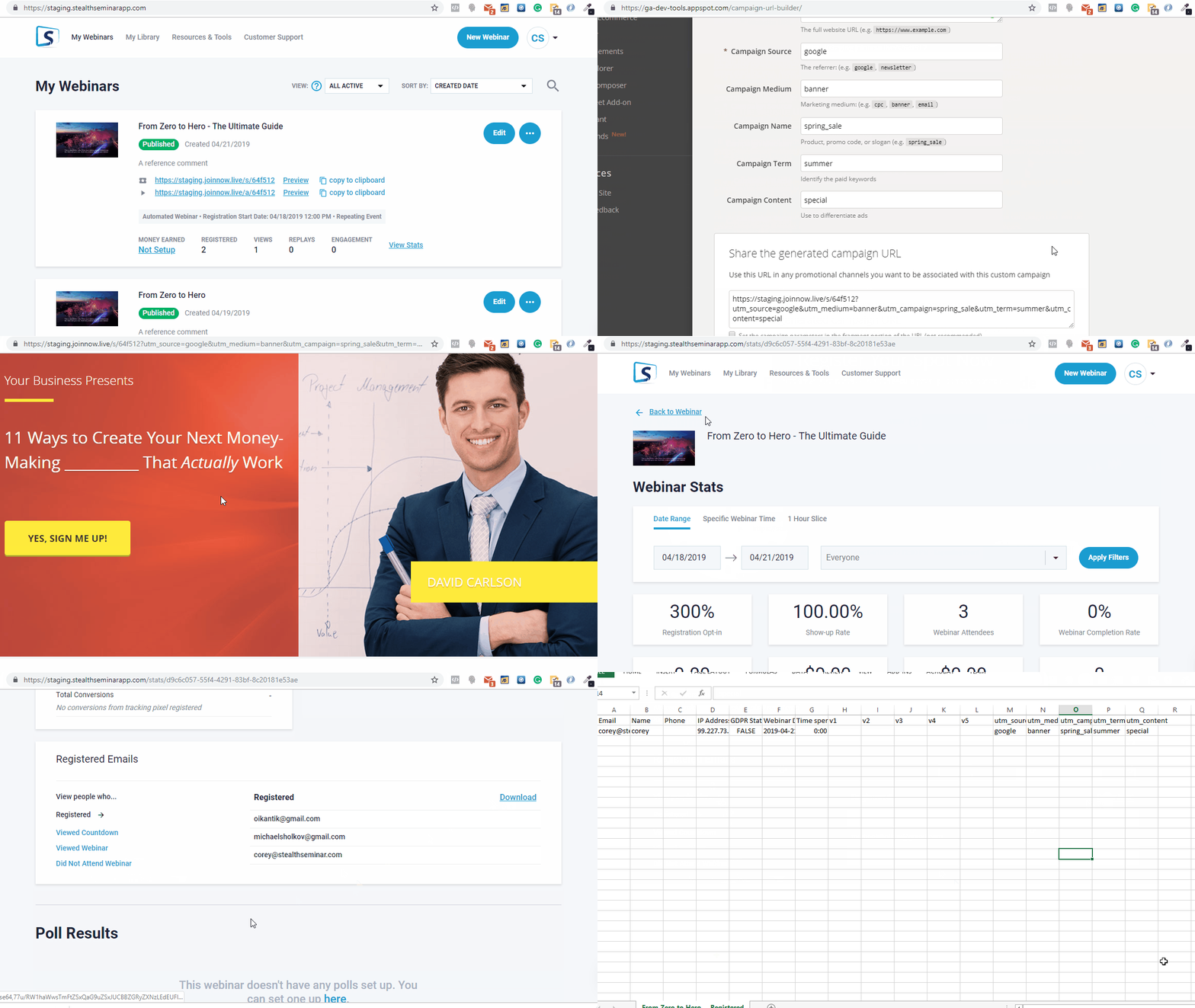
Simply Copy the registration page url from your dashboard , and append the UTM parameters at the end of the url, and share at your Ad.
Here is how it will work:
- Once people register for the webinar, you can pass those UTM parameters to your autoresponder. This will happen automatically once you configure & sync your marketing plugin connection
- Downloading the data in stats. at the individual webinar event is available.
- "Template Tags" are also available throughout the webinar event for use in editors there, if you want to access UTM for your calls to action or email reminders & create links to your pages.
UTM tracking is also available to do at your 3rd party registration page.
Using our Registration Embed Widget, though availability and setup may vary depending on your page builder and any additional code requirements imposed by the platform. Check for support at chatbox.
Let us know if you have any other questions at the chatbox, we're happy to help!