
How do I show my desktop in OBS?
This article assumes you read this article and know how to run a live webinar with OBS. If not please read this first.
Windows: Capture your entire monitor
Use Display Capture when you want to show everything on one monitor.
- Open OBS Studio.
- Select the scene where you want to add the screen.
- In the Sources panel, select +.
- Select Display Capture.
- Select Create New.
- Enter a name, such as
Presentation Monitor. - Select OK.
- Choose the monitor you want to capture.
- Select OK.
Your selected monitor will now appear in the OBS preview.
OBS supports one Display Capture source per monitor. If you want to use the same monitor in another scene, add the existing source instead of creating a duplicate.
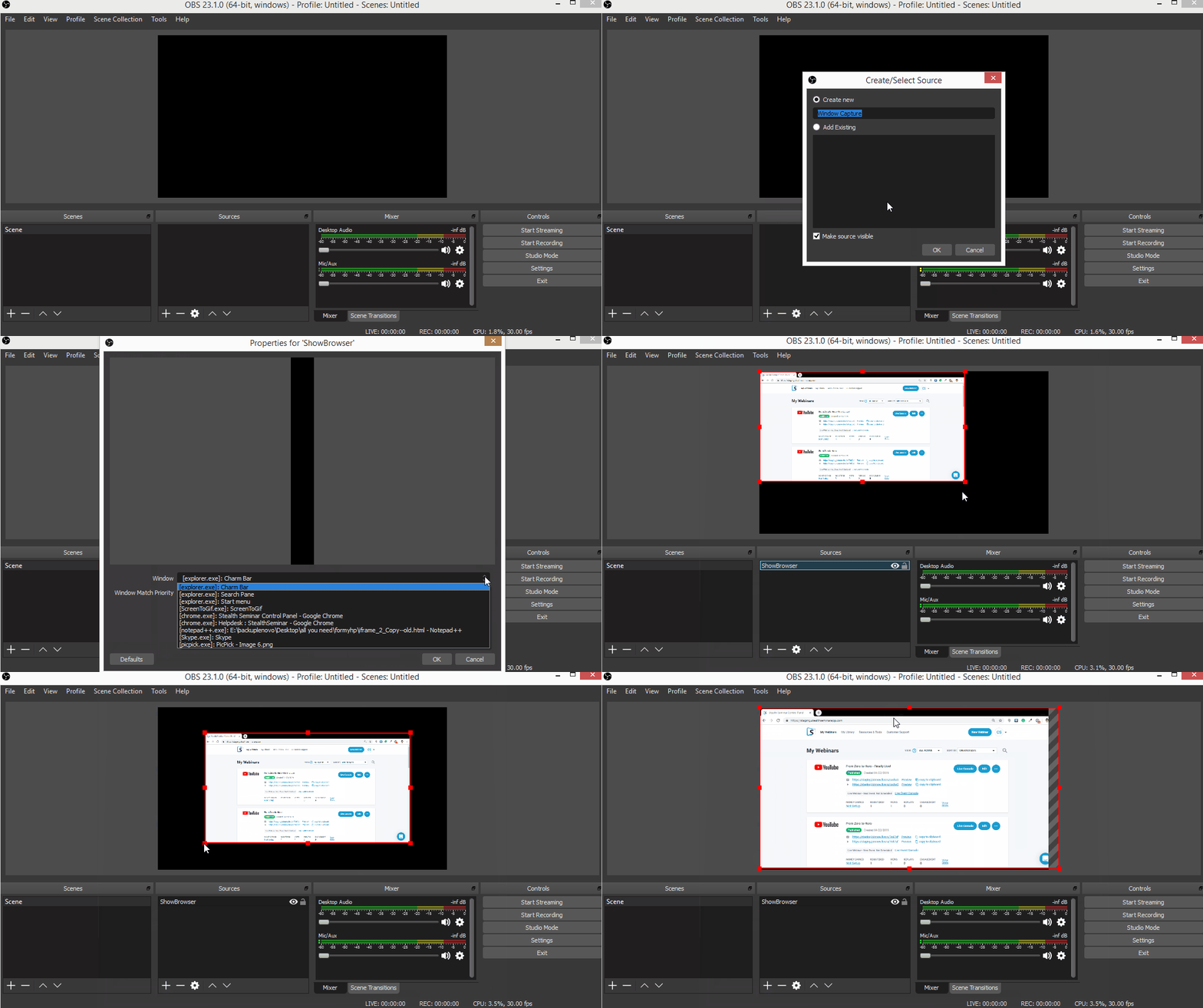
Windows: Capture one application
Use Window Capture when you want to show only one application or window.
- Open the application you want to share.
- In OBS, select the scene where you want to add it.
- In the Sources panel, select +.
- Select Window Capture.
- Select Create New.
- Enter a name, such as
Browser Presentation. - Select OK.
- Select the application or window from the Window menu.
- Select OK.
Only the selected window will be shown, even if another application is placed in front of it.
Resize or crop the captured source
To resize the source:
- Select the source in the OBS preview.
- Drag a corner handle to resize it.
- Drag the source to position it.
To fit the source to the OBS canvas:
- Windows: press Ctrl + F
- macOS: press Command + F
To crop the source:
- Select the source in the preview.
- Hold Alt on Windows or Option on macOS.
- Drag an edge handle inward.
- Position the cropped source where you want it.
You can also right-click the source and select Transform > Edit Transform for more precise adjustments.