
How to bulk import Chat Replay messages?
You can upload multiple Chat Replay messages at once using a CSV file instead of adding each message manually.
How to bulk import Chat Replay messages
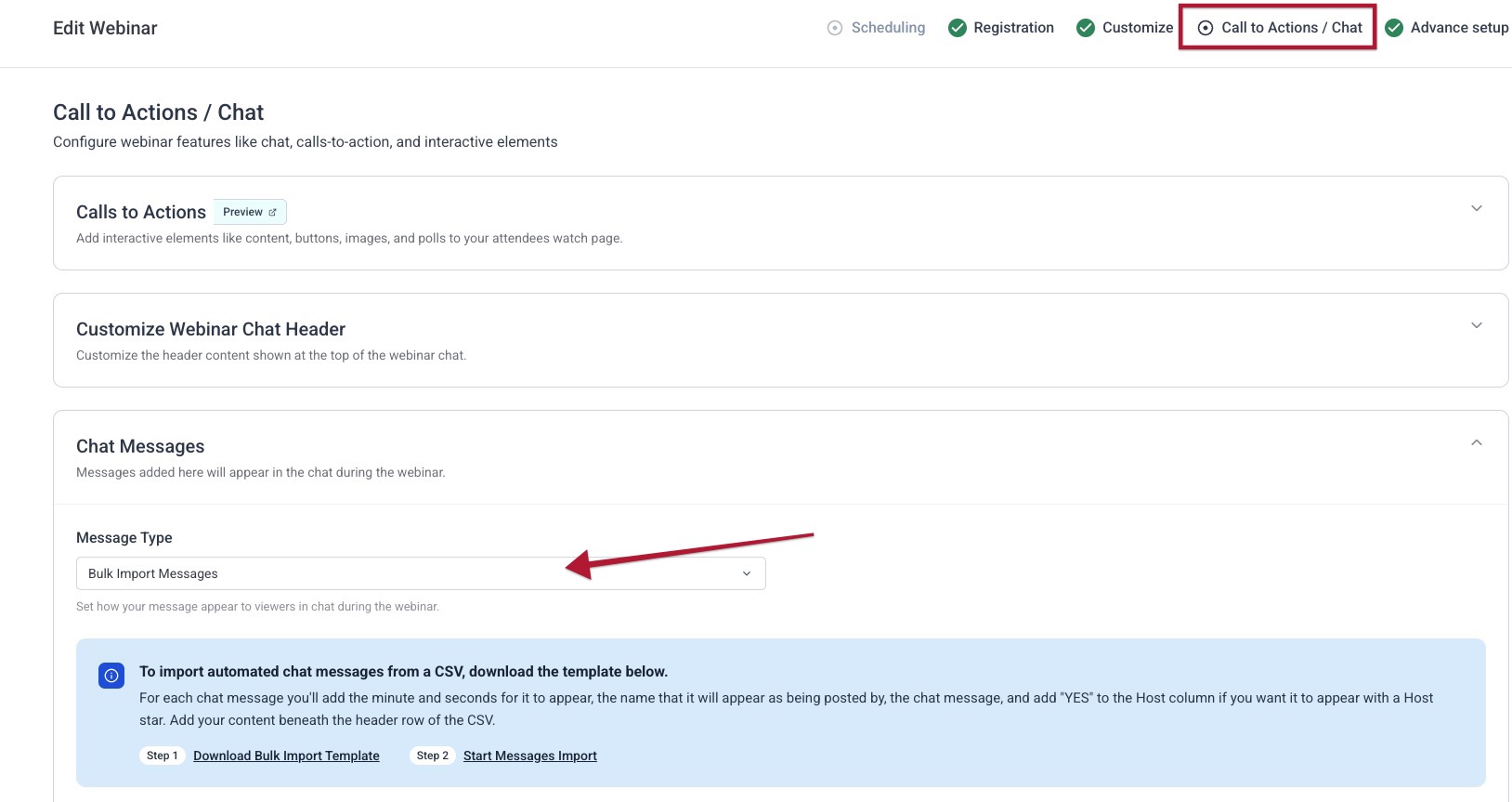
- Open your webinar and select Edit Webinar.
- Select Call to Actions / Chat from the top navigation.
- Expand the Chat Messages section.
- Under Message Type, select Bulk Import Messages.
- In the blue information panel, select Step 1: Download Bulk Import Template.
- Open the CSV template and add your messages beneath the header row.
- Enter the message time, name, and message text. Add YES in the Host column if the message should appear as a host message.
- Save the completed file as a
.csvfile. - Return to the Chat Messages section and select Step 2: Start Messages Import.
- Choose the completed CSV file from your computer and wait for the import to finish.
- Review the imported messages in the Chat Messages list below the import panel.

Download the CSV template
Download the official Chat Replay CSV template here.
Use the template as provided. Do not remove the column headings or change the column order.
NOTE:
You must follow the rules shown below for any content added to the chat replay. If you fail to do so, our server may send repeat erroneous messages.
Bulk importing will overwrite any existing chat replay. This capability can also be used to remove a long list of chats that were added to an event that was left running without maintenance.
Add your Chat Replay messages
Open the CSV file in a spreadsheet application such as Google Sheets, Excel, or another CSV editor. Complete one row for each message.
| Column | What to enter |
|---|---|
| Chat Minute (0-59) | The total number of minutes from the beginning of the webinar. For example, enter 65 for a message at 1 hour and 5 minutes. |
| Chat Second (0-59) | The number of seconds within that minute. Enter a value from 0 to 59 . |
| Name for Chat | The name that should appear next to the message. |
| Chat Message | The message that should appear in Chat Replay. |
| Mark as Host User? (YES or blank) | Enter YES to display the message as coming from the host, system, or presenter. Leave this field blank for an attendee message. |
Example
| Chat Minute | Chat Second | Name for Chat | Chat Message | Mark as Host User? |
|---|---|---|---|---|
| 65 | 0 | John D. | This looks great! |
|
| 66 | 15 | Host | Let’s get started. | YES |
Your messages should appear in the webinar’s Chat Replay settings after the import is complete.
Test the imported messages
After importing your CSV:
- Register for the webinar using a test registration.
- Watch the webinar from the beginning.
- Confirm that each message appears at the intended time.
- Check that host messages display correctly.
- Confirm that names and message text appear as expected.
Testing is recommended before sending the registration link to attendees, especially after replacing an existing Chat Replay.