
How do I enable/disable fast forward?
Contents
Before you change the settings
NOTE: If your webinar has already been shared or has active attendees, changing the video controls will affect what those attendees see. Fast forward should only be enabled this way for testing or demonstrations.
How to enable fast forward
- Open the webinar editor by clicking on the hyperlinked name of the webinar or the 3 dots and clicking Edit Webinar.
- Click the Advanced Setup navigation tab (at the top right of the page).
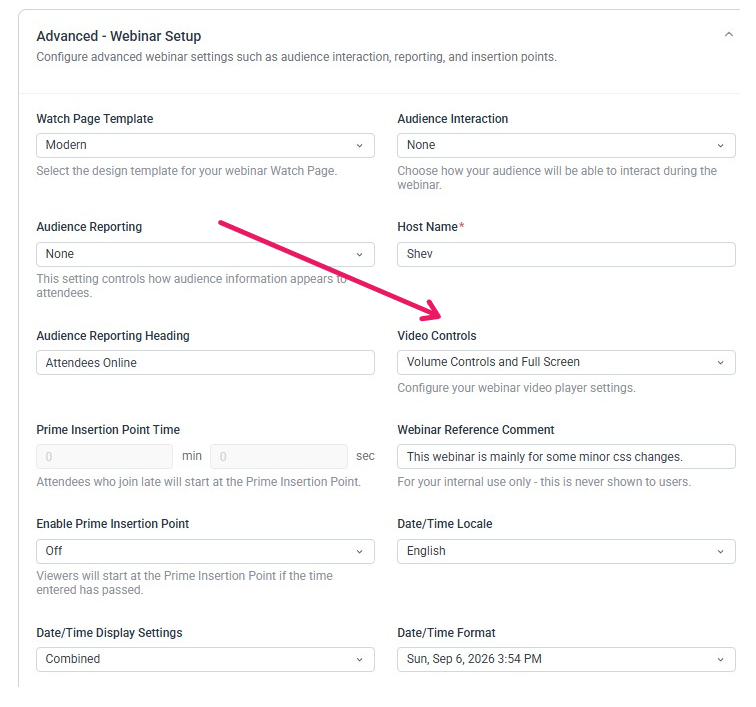
- Scroll down and click Advanced - Webinar Setup to open the drop-down menu of customization options
- Scroll down to Video Controls.
- Select All Controls.
- Click Updated Webinar.
How to disable fast forward
- Open the webinar in the Webinar Editor.
- Select Webinar.
- Open Advanced - Webinar Setup.
- Scroll down to Video Controls.
- Select one of the following options:
- Volume Controls and Full Screen
- Volume Controls Only
- Click Update Webinar.
These settings remove the fast-forward and rewind controls from the attendee video player.
NOTE: For most live or shared webinars, change the setting back to All Controls after testing. This prevents attendees from skipping through the webinar when you do not want them to.
Preview your changes
- Fast forward and rewind are available when All Controls is selected.
- Fast forward and rewind are hidden when Volume Controls and Full Screen or Volume Controls Only is selected.
- Your Audience Interaction and Audience Reporting settings are still configured correctly.
Common Questions
Will attendees see the fast-forward controls immediately?
Which setting enables fast forward?
Select All Controls under Video Controls. This enables playback controls, including seeking through the video.
Can I allow fast forward on a replay but not on the original webinar?
Why did my Audience Interaction or Audience Reporting settings change?
Changing the video controls can reset or alter those settings. Note their existing values before enabling fast forward, then restore them after testing (this should only be if necessary).