
How do the SMS Reminders work?
SMS Reminders send a short text message to an attendee who opted in during registration. The built-in reminder is queued during the five-minute window before the attendee’s selected webinar session and includes a link to the webinar.
For the reminder to work, SMS must be enabled for the webinar, the registration form must collect the attendee’s mobile number, and the attendee must register early enough for the reminder window to remain available.
Before You Start
SMS reminders require a scheduled webinar with registration. They are not part of the standard reminder flow for Public Webinars or Dedicated Replays.
If the SMS controls are missing or disabled, check the eligibility message shown in your account before treating the issue as a setup problem.
Step-by-Step Configuration Instructions
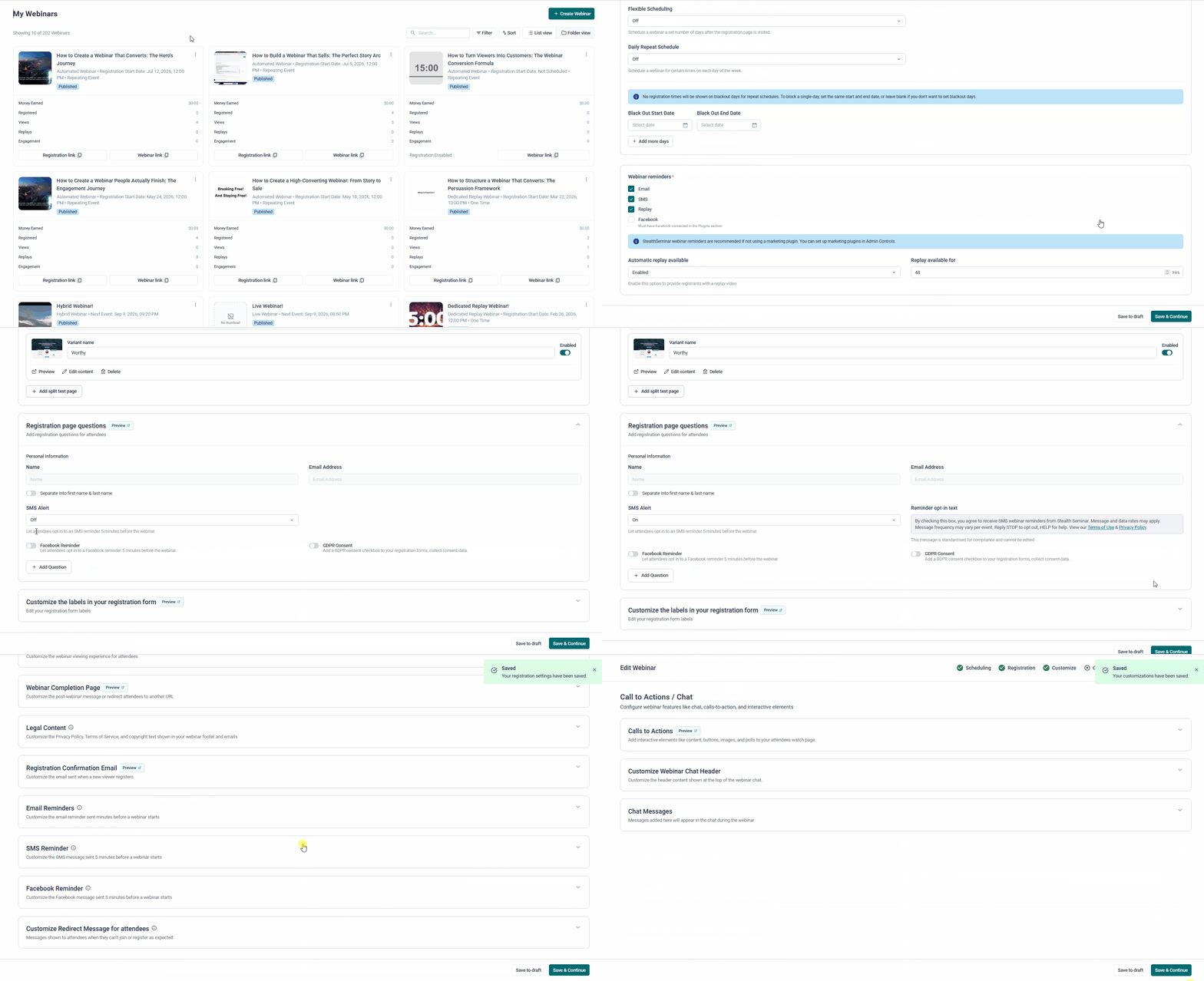
Step 1: Turn on SMS reminders
- Open the webinar you want to update.
- Navigate to Scheduling > Webinar reminders.
- Select SMS in the Webinar reminders group.
- Click Save & Continue or Save to draft in the footer.
This setting applies only to the webinar you are editing. It controls StealthSeminar’s built-in SMS reminder. It does not turn on messages sent by an external CRM, plugin, webhook, or automation.
Step 2: Enable the SMS Number field
- Navigate to Registration > Registration Fields.
- Find the SMS Number field.
- Make sure the field is enabled.
- Click Save & Continue or Save to draft.
This field gives attendees a way to opt in and enter the mobile number that should receive the reminder. If the field is not shown on the active registration page, StealthSeminar cannot collect the number needed for the SMS reminder.
Step 3: Customize the reminder message
- Navigate to Customize > SMS Reminder.
- Enter your message in SMS Reminder Text.
- Keep
{webinarLink}in the message exactly as written, and use it once. StealthSeminar replaces it with the attendee-specific webinar link. - Keep the message short enough to leave room for the webinar link.
- Remove any emoji because emoji are not supported in the SMS reminder text.
- Click Save & Continue or Save to draft.
For example:
Your webinar starts in 5 minutes. Join here: {webinarLink}
The current editor does not include a separate SMS preview action. To verify the complete experience, use the real registration test in Step 4.
Step 4: Complete a real registration test
- Open the active registration page for the webinar.
- Register using a test name and email address.
- Select the SMS reminder opt-in.
- Enter a valid mobile number that can receive text messages.
- Complete the registration.
- Register early enough for the five-minute reminder window to occur after registration. A registration made too close to the start time may miss the reminder window.
- Confirm that the SMS arrives shortly before the webinar starts.
- Open the link in the text message and confirm that it opens the correct webinar.
A real registration test checks the full flow, including registration, opt-in, phone-number validation, attendee association, timing, delivery, and the webinar link.
Important: For US and Canada phone numbers, 10DLC enforcement uses StealthSeminar’s default SMS wording instead of custom wording. The attendee-specific webinar link is still included. A US or Canada test verifies delivery and the link, but it does not verify custom message text.
How the Reminder Works
After an attendee registers and opts in, StealthSeminar stores the mobile number with that attendee’s webinar registration. The reminder service looks for upcoming webinar sessions in the five-to-six-minute window and queues a message for eligible attendees with a valid mobile number.
The message can include the attendee-specific webinar link. Actual arrival time can vary slightly because queueing and carrier delivery are separate from the scheduled send.
The built-in SMS timing and number of reminders are fixed. You can change the wording, but you cannot add more built-in SMS reminders or change the send time from the webinar editor.
A person who registers too close to the start time may not receive the reminder because the send window has already passed.
External CRMs, plugins, webhooks, or automations may send separate SMS messages. StealthSeminar does not coordinate those messages with its native reminder, so duplicate messages are possible if both systems are configured to send SMS.
Test & Verification
- Confirm that SMS is enabled under Scheduling > Webinar reminders.
- Confirm that the SMS Number field is enabled under Registration > Registration Fields.
- Open Customize > SMS Reminder and confirm that the intended message contains
{webinarLink}exactly once. - Click Save & Continue or Save to draft.
- Open the active registration page in a private or incognito browser window.
- Complete a new registration and opt in to SMS reminders.
- Confirm that the mobile number is accepted.
- Confirm that the test registration is associated with the expected webinar session.
- Wait for the five-minute reminder window.
- Confirm that the text arrives and that the link opens the correct webinar.
For a US or Canada test, verify delivery and the personalized link separately from the custom wording because the default message is used for those phone numbers.
Troubleshooting Guide
| Symptom | Root Cause | Resolution |
|---|---|---|
| The SMS option is missing or disabled. | The account may not be eligible, may have an inactive subscription, may require phone verification, or may use a webinar type without scheduled reminder controls. | Follow the eligibility message shown in the editor. Check the account plan and subscription status, confirm any phone-verification requirement, and confirm that the webinar is not a Public Webinar or Dedicated Replay. |
| The SMS field does not appear on the registration page. | The SMS Number field is disabled, or the active page is not connected to the webinar. | Enable the field under Registration > Registration Fields, save, and test the active registration page again. If you use a third-party registration page, confirm that it passes the attendee registration, opt-in, and phone number to StealthSeminar. |
| No SMS arrives. | SMS is disabled, the attendee did not opt in, the number was invalid or not mobile, the subscription is not eligible, or registration happened after the reminder window. | Check the SMS setting, registration field, opt-in, mobile number, selected session, subscription status, and registration time. Register again early enough for a new test. |
| The SMS arrives, but the link is missing or incorrect. | {webinarLink} was removed, misspelled, or used more than once. |
Add the exact placeholder {webinarLink} once, save the webinar, and run a new registration test. |
| The message is too long or cannot be saved. | The message has a length limit because the attendee-specific webinar link is part of the final SMS. | Shorten the custom wording and leave room for {webinarLink} . |
| The message contains an emoji incorrectly or the text is rejected. | Emoji are not supported in the SMS reminder text. | Remove emoji and save the message again. |
| A US or Canada test receives the default wording instead of the custom wording. | 10DLC enforcement uses the default SMS message for US and Canada phone numbers. | Treat delivery and the personalized link as the verification points. Custom wording cannot be verified with a US or Canada number. |
| Attendees receive duplicate text messages. | StealthSeminar and an external marketing platform or automation are both sending SMS. | Check the connected plugin, webhook, or automation and decide which system should own SMS reminders. |
Frequently Asked Questions
When is the SMS sent?
The built-in reminder is queued during the five-to-six-minute window before the attendee’s selected webinar session. It may arrive slightly before or after the five-minute mark because queueing and carrier delivery take time.
Can I change when the SMS is sent?
No. The built-in send time and number of SMS reminders are fixed. You can customize the message text, but not the timing or number of built-in SMS reminders.
Do attendees have to provide a phone number?
Yes. An attendee must see the SMS opt-in field, choose to receive the reminder, and enter a valid mobile number.
Can I use SMS reminders with a marketing plugin?
Yes, but the two systems operate independently. A marketing plugin can send its own messages, so review both systems if attendees receive duplicate reminders.
Does the SMS reminder work for Public Webinars or Dedicated Replays?
No. These formats do not use the standard registered-attendee scheduled SMS-reminder flow.