
How Do I Set Up Event Tracking Pixels?
You can add third-party tracking pixel code to your StealthSeminar events. This article explains how to set up, where pixels go, how to target individual pages, and how page behavior differs by event type.
Global vs. Page-Specific Placement
There are two ways to add tracking pixels:
- Global section — applies the pixel across all pages of your event. This is the option you'll use most often for react-based webinar events.
- Individual page placement — add the pixel to a specific page of your event instead of applying it globally.
To set up event tracking pixels in StealthSeminar:
-
Go to your event's Miscellaneous section, and then click the tab under Tracking Codes.
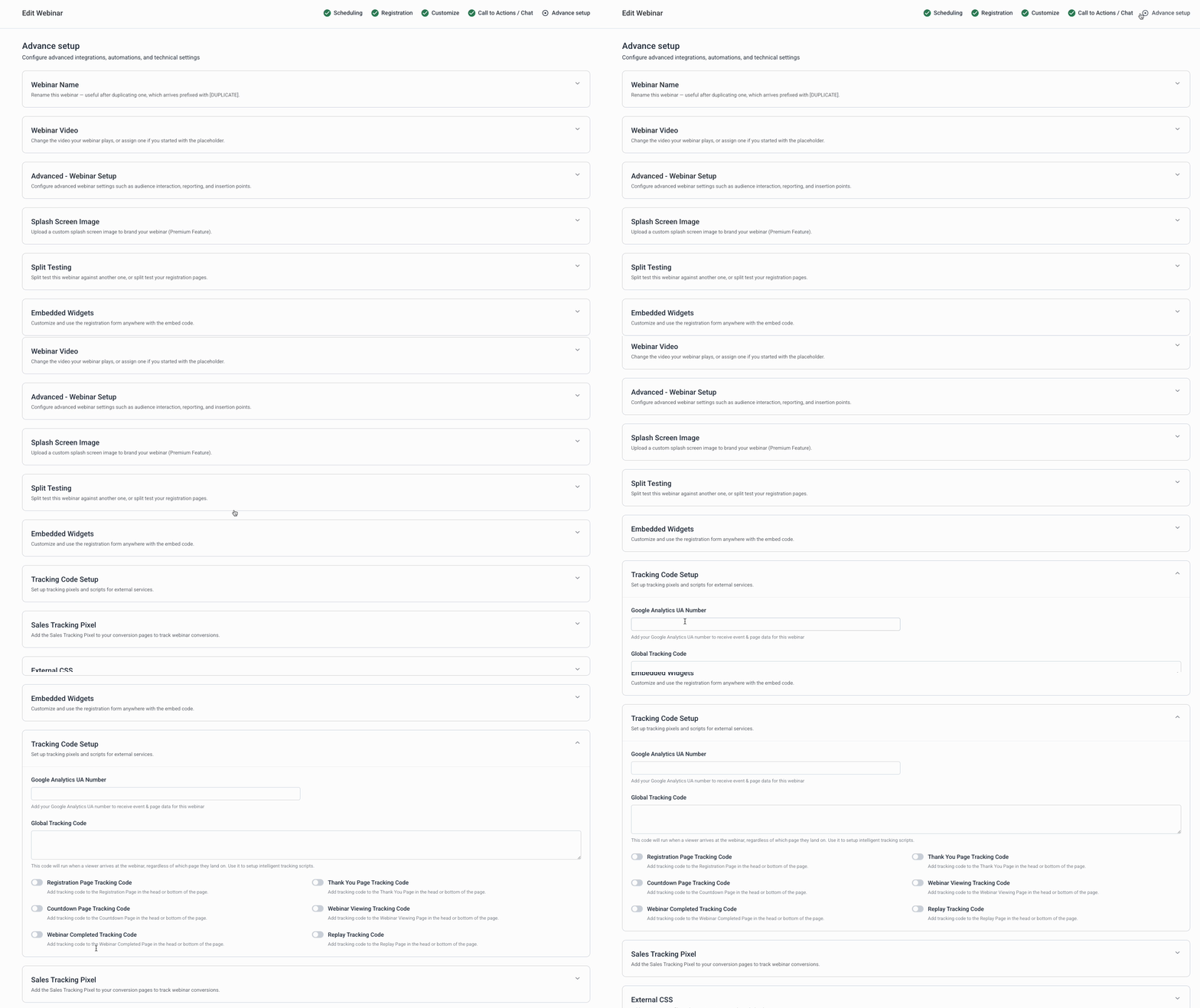
- Choose where to add your pixel:
- Global — applies it across all pages of the event (most common choice for react-based events)
- Individual page — add it to just one specific page instead

Page Designators (Automated Webinar)
- For an Automated webinar event, use these URL path designators to identify each page:
| Designator | Page | When people land here |
|---|---|---|
/s/ |
Registration page | When they visit to register |
/t/ |
Thank-you page | Immediately after registering |
/a/ |
Webinar watch page | From email reminders; shows a countdown until the webinar starts |
/r/ |
Replay page | From reminders, to watch the replay |
Dedicated Replay (On Demand) events: The /t/ thank-you page is bypassed — attendees go straight to the /a/ watch page. Because this page is skipped, it's not recommended to rely on /t/ for pixel tracking on Dedicated Replay events.
Adding a Pixel to a Built-In Template Page
If you're using a built-in template, here's an example of adding a pixel to the registration page:

Pixels are generally placed inside the <head> of the page. Unless your tracking provider's instructions say otherwise, add your code to the first box in the Tracking Codes section.
Common Questions
Should I use the Global section or add pixels to individual pages?
Use the Global section if you want the pixel firing across your whole event — it's the simplest setup for most react-based events. Use individual page placement if you only need tracking on one specific page.
Can I still track individual pages if my pixel is in the Global section?
Yes. Use the page designators (/s/ , /t/ , /a/ , /r/ ) at your third-party tracking provider to distinguish which page each event fired on.
Why shouldn't I use the /t/ thank-you page for Dedicated Replay events?
Dedicated Replay (On Demand) events skip the thank-you page entirely and send attendees straight to the watch page (/a/ ), so a pixel placed only on /t/ won't fire for that event type.
Where exactly should I paste my pixel code?
Inside the <head> of the page, using the first box in Tracking Codes — unless your pixel provider's own instructions specify a different location.